how to shoot in raw format for flexibility sets the stage for this enthralling narrative, offering readers a glimpse into a story that is rich in detail with formal and friendly language style and brimming with originality from the outset.
This guide delves into the powerful advantages of capturing your images in RAW format, a method favored by professionals for its unparalleled post-processing capabilities. We will explore the fundamental differences between RAW and JPEG, the crucial camera settings required for optimal RAW capture, and the essential software and advanced techniques that unlock the full potential of your image data. Furthermore, we’ll examine practical shooting scenarios where RAW truly shines, alongside best practices for managing and storing these vital files, ensuring you have the creative freedom and technical control you need for any photographic endeavor.
Understanding RAW Format Benefits
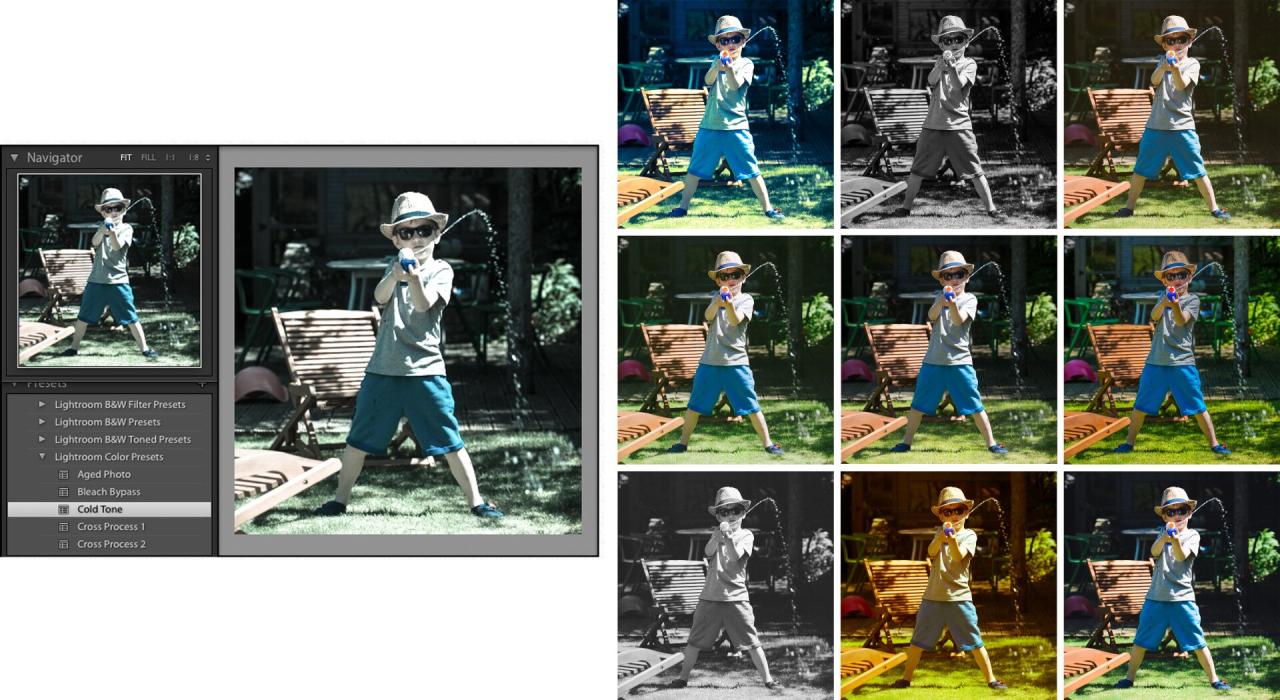
When capturing images, photographers have a crucial decision to make regarding the file format: RAW or JPEG. While JPEGs are widely recognized for their convenience and smaller file sizes, shooting in RAW format unlocks a significantly higher level of control and flexibility during post-processing. This is particularly vital for professional work and for anyone aiming to extract the absolute best from their photographs.The fundamental difference lies in how the camera processes and stores image data.
A JPEG is a processed and compressed file, meaning the camera has already made decisions about white balance, sharpening, contrast, and color saturation. These adjustments are permanent and cannot be easily undone. RAW files, on the other hand, are essentially uncompressed, unprocessed sensor data. They contain all the information captured by the camera’s sensor, offering a much larger dynamic range and a wider color gamut.
RAW vs. JPEG: A Fundamental Distinction
The primary distinction between RAW and JPEG formats resides in the level of in-camera processing and data preservation. JPEGs are the result of the camera’s internal algorithms interpreting the sensor data, applying compression, and embedding metadata. This results in a ready-to-share file, but with a significant reduction in the original data. RAW files, conversely, are a direct dump of the unprocessed sensor data, often referred to as a digital negative.
They require specific software to interpret and develop, but this lack of initial processing is precisely what grants them their power.
Advantages of RAW Files for Post-Processing Flexibility
The unadulterated data within RAW files provides unparalleled flexibility when it comes to editing. Photographers can make significant adjustments to exposure, white balance, highlight and shadow recovery, and color grading without introducing the artifacts or quality degradation often seen when pushing JPEGs too far. This means that a slightly underexposed or overexposed shot can often be salvaged, and subtle color shifts can be achieved with greater precision.Consider a scenario where a photographer captures a sunset with challenging lighting.
A JPEG might have blown-out highlights or completely black shadows. A RAW file, however, would retain detail in both the brightest and darkest areas, allowing the photographer to recover these details in post-processing, revealing the full spectrum of colors and textures present in the scene.
Reasons for Choosing RAW for Critical Projects
Professional photographers and serious enthusiasts opt for RAW for critical projects due to the non-negotiable need for maximum image quality and control. Whether it’s for commercial advertising, fine art prints, or archival purposes, the ability to fine-tune every aspect of the image is paramount. This ensures that the final output meets the highest standards and accurately reflects the photographer’s artistic vision.For instance, in product photography, precise color matching is often essential.
Shooting in RAW allows for meticulous white balance adjustments to ensure colors are rendered accurately, a task that is significantly more challenging and often impossible with JPEGs. Similarly, for portraiture, subtle skin tone adjustments and detailed retouching are best performed on RAW files to maintain a natural and professional look.
Preservation of Image Data in RAW Files
RAW files preserve significantly more image data compared to JPEGs. This is due to several key factors:
- Bit Depth: RAW files typically capture 12-bit or 14-bit color depth, meaning they record 4,096 or 16,384 shades per color channel (red, green, blue). JPEGs, on the other hand, are usually 8-bit, offering only 256 shades per channel. This difference translates to smoother gradations and a wider range of reproducible colors in RAW files.
- Dynamic Range: The dynamic range refers to the camera’s ability to capture detail in both the brightest highlights and the darkest shadows simultaneously. RAW files capture a much wider dynamic range than JPEGs, providing more latitude for recovering lost detail in extreme lighting conditions.
- Uncompressed or Losslessly Compressed: While some RAW formats employ lossless compression, they do not discard any image data. JPEGs, however, use lossy compression, which permanently removes data to reduce file size, inevitably leading to a loss of quality, especially noticeable in areas of fine detail or smooth gradients.
This extensive data preservation is the bedrock of RAW’s flexibility. It’s like having a detailed blueprint of your image, allowing you to build and refine it in post-processing with a level of precision that is simply not achievable with a pre-determined and compressed JPEG.
Camera Settings for RAW Capture
To harness the full potential of shooting in RAW format, understanding and correctly configuring your camera’s settings is paramount. This section will guide you through the essential steps to enable RAW capture, explore the nuances of RAW+JPEG options, and shed light on how your camera’s internal processing influences these files.
Enabling RAW Shooting
Locating the specific menu option to enable RAW shooting is the first crucial step. While menu structures can vary slightly between camera manufacturers and models, the general principle remains consistent. You will typically find this setting within the image quality, shooting settings, or file format menus.
The process for enabling RAW capture generally involves the following steps:
- Navigate to your camera’s main menu system.
- Look for a section labeled “Image Quality,” “Shooting Settings,” “File Format,” or similar.
- Within this section, you will find options for image resolution and file type.
- Select the option that includes “RAW” or a specific RAW file extension (e.g., .CR2, .NEF, .ARW).
Selecting RAW or RAW+JPEG
Many cameras offer the flexibility to shoot in RAW only or in a RAW+JPEG combination. This choice impacts workflow, storage, and immediate usability of your images. Understanding the implications of each setting is vital for efficient photography.
The choice between RAW and RAW+JPEG is typically made within the same image quality menu where you enable RAW capture. Here’s a breakdown:
- RAW: This setting captures the unprocessed data directly from the camera’s sensor. Only the RAW file is saved. This offers the maximum flexibility in post-processing but requires conversion and editing before sharing or printing.
- RAW+JPEG: This option saves both a RAW file and a processed JPEG file simultaneously. The JPEG is generated by the camera’s internal processing based on your selected picture style, white balance, and other settings. This provides a ready-to-use image for immediate sharing, while still retaining the uncompressed RAW file for later, more intensive editing.
When selecting RAW+JPEG, consider the following:
- Storage Space: This mode consumes significantly more storage space on your memory card due to saving two files per shot.
- Workflow Efficiency: For situations where you need quick previews or immediate sharing, the JPEG can be very convenient.
- Post-Processing Potential: The RAW file remains untouched, ensuring you have the full range of editing capabilities for those shots you deem most important.
Impact of Camera’s Internal Processing on RAW Files
It is a common misconception that RAW files are entirely devoid of any camera processing. While RAW files capture the most fundamental data from the sensor, certain aspects of the camera’s internal processing do influence the resulting RAW file, albeit in a non-destructive manner.
The camera’s internal processing does affect RAW files in several ways:
- Metadata: Information such as white balance, exposure compensation, picture style (color profile, contrast, saturation), and sharpening settings are embedded as metadata within the RAW file. These are not baked into the image data itself but are used by RAW conversion software as a starting point.
- Color Filter Array Interpolation: The camera’s processor interpolates the color data from the Bayer (or similar) color filter array on the sensor to reconstruct a full-color image. This process is inherent to digital image capture.
- Noise Reduction (Limited): While extensive noise reduction is typically applied during JPEG conversion, some minimal noise reduction might be applied even to RAW files to manage sensor noise. However, this is usually less aggressive than in JPEGs.
“The beauty of RAW is that these camera-applied settings are suggestions, not immutable commands. They provide a baseline for your post-processing, allowing you to deviate significantly if desired.”
Comparison of RAW File Types
Different camera manufacturers utilize proprietary RAW file formats, each with its own characteristics and naming conventions. Understanding these differences can be helpful, especially when working with multi-brand setups or specific editing software.
Here is a comparison of common RAW file types from major camera manufacturers:
| Manufacturer | RAW File Extension | Commonly Associated Software | Notes |
|---|---|---|---|
| Canon | .CR2, .CR3 | Canon Digital Photo Professional (DPP), Adobe Lightroom, Adobe Photoshop | CR3 is the newer format, supporting more advanced features. |
| Nikon | .NEF | Nikon Capture NX-D, Adobe Lightroom, Adobe Photoshop | Nikon offers lossless and compressed RAW options. |
| Sony | .ARW | Sony Imaging Edge, Adobe Lightroom, Adobe Photoshop | Sony’s ARW files are widely supported. |
| Fujifilm | .RAF | Fujifilm X RAW Studio, Adobe Lightroom, Adobe Photoshop | Fujifilm’s RAW files are known for their excellent color science. |
| Olympus/OM System | .ORF | Olympus Workspace, Adobe Lightroom, Adobe Photoshop | |
| Panasonic | .RW2 | Panasonic SILKYPIX Developer Studio, Adobe Lightroom, Adobe Photoshop |
While the file extensions differ, the fundamental principle of capturing unprocessed sensor data remains the same across all these formats. Most modern RAW conversion software is designed to handle these various proprietary formats, offering a unified editing experience.
Essential Post-Processing Software
Once you’ve captured your images in RAW format, the next crucial step is to process them. RAW files are essentially digital negatives, containing a wealth of unprocessed data. This data needs to be interpreted and enhanced by specialized software to unlock its full potential. Fortunately, a variety of powerful applications are available to help you transform your RAW captures into stunning photographs.Choosing the right software is a personal decision, often influenced by your operating system, budget, and specific editing needs.
However, most modern photo editing applications offer robust RAW processing capabilities. These programs provide the tools necessary to fine-tune every aspect of your image, from overall brightness to the subtlest color nuances.
Popular RAW Processing Applications
The landscape of photo editing software is rich with options, each offering a unique set of features and user experiences. When working with RAW files, selecting a program that excels in this area is paramount. Here are some of the most popular and highly regarded applications:
- Adobe Lightroom Classic and Lightroom CC: These are industry-standard tools, offering comprehensive RAW editing, cataloging, and organizational features. Lightroom Classic is desktop-focused, while Lightroom CC is cloud-based, syncing across devices.
- Adobe Photoshop: While more of a pixel-level editor, Photoshop’s Camera Raw plugin is an exceptionally powerful RAW processor, often used in conjunction with Lightroom or as a standalone tool for detailed retouching.
- Capture One Pro: Renowned for its superior color rendering and tethering capabilities, Capture One Pro is a professional-grade software favored by many studio and commercial photographers.
- DxO PhotoLab: This software is celebrated for its advanced optical corrections and noise reduction technologies, automatically correcting lens imperfections and reducing digital noise with remarkable effectiveness.
- Affinity Photo: A strong contender in the professional editing space, Affinity Photo offers a powerful, one-time purchase alternative to subscription-based software, with excellent RAW processing capabilities.
- Darktable: A free and open-source option, Darktable provides a professional workflow for photographers, offering a comprehensive suite of tools for non-destructive RAW editing.
- RawTherapee: Another free and open-source RAW converter, RawTherapee is known for its advanced algorithms and detailed control over image parameters.
Initial Import Process for RAW Files
The process of bringing your RAW files into editing software is typically straightforward and designed to be user-friendly. While the exact steps may vary slightly between applications, the core principle remains the same: selecting your files and importing them into the software’s library or editing environment.Let’s use Adobe Lightroom Classic as an example for demonstrating the initial import process.
- Launch Lightroom Classic: Open the application on your computer.
- Navigate to the Import Module: Click on the “File” menu and select “Import Photos and Video…” or click the “Import…” button, usually located in the lower-left corner of the Library module.
- Select Source: In the Import dialog box, navigate to the location on your computer where your RAW files are stored (e.g., a specific folder on your hard drive or an SD card).
- Choose Files: Lightroom will display thumbnails of the images in the selected folder. You can select individual files, a range of files, or all files within the folder.
- Select Import Options: On the right-hand side of the dialog box, you’ll find several import options. For RAW files, it’s generally recommended to:
- File Handling: Choose whether to Copy as DNG (Digital Negative), Copy, or Move your files. Copying is a safe option that duplicates your files to your chosen Lightroom catalog location.
- Apply During Import: You can apply develop presets, metadata, or develop settings at this stage if desired, though many prefer to do this after the initial import.
- Click Import: Once you’ve made your selections, click the “Import” button. Lightroom will then ingest your RAW files into its catalog, making them available for editing.
Core Adjustments for RAW Files
RAW files offer unparalleled flexibility in post-processing because they retain all the data captured by your camera’s sensor. This means you have a much wider latitude for making adjustments without introducing artifacts or significant quality degradation compared to editing JPEGs. The fundamental adjustments available in most RAW editors allow you to correct and enhance your images effectively.These core adjustments are the building blocks of RAW image editing, enabling you to bring out the best in your captured light and color.
- Exposure: This is arguably the most critical adjustment. RAW files allow you to recover details in both the highlights (brightest areas) and shadows (darkest areas) that would be lost in a JPEG. You can brighten or darken the entire image to achieve a balanced exposure.
- White Balance: Correcting white balance ensures that white objects appear truly white in your image, and consequently, all other colors are rendered accurately. RAW files allow for precise white balance adjustments without degrading color information, unlike JPEGs where this is often a destructive edit.
- Color Adjustments: This encompasses a range of tools including saturation (the intensity of colors), vibrance (a more intelligent saturation that protects skin tones), and individual color channel adjustments (hue, saturation, and luminance for specific colors like reds, blues, greens, etc.).
- Contrast: Adjusting contrast controls the difference between the darkest and brightest parts of an image. Increasing contrast can make an image appear more dramatic, while decreasing it can soften the look.
- Highlights and Shadows: These sliders are crucial for recovering detail in extreme tonal areas. You can selectively brighten shadows to reveal hidden details or darken highlights to prevent blown-out areas.
- Clarity and Texture: Clarity adds mid-tone contrast, making details appear sharper and more defined. Texture enhances fine details without affecting larger areas of the image.
- Sharpening and Noise Reduction: RAW files allow for precise control over sharpening, which enhances edge detail. Noise reduction techniques can minimize unwanted grain or digital noise, especially in images shot at high ISOs.
Basic Workflow for Editing a RAW Image
A structured workflow ensures efficiency and consistency when editing your RAW images. While individual preferences and the specific needs of each image will dictate variations, a fundamental process can guide you from import to a polished final product. This workflow emphasizes non-destructive editing, allowing you to revisit and refine your choices at any stage.Here is a common and effective workflow for editing a RAW image:
- Import and Organize: As detailed previously, import your RAW files into your chosen editing software. Organize them into albums or collections for easy retrieval.
- Initial Assessment and Global Adjustments:
- Open a RAW file in the develop or edit module.
- Begin with global adjustments: correct the white balance, adjust the overall exposure, and fine-tune the contrast.
- Use the highlights and shadows sliders to recover detail in overexposed or underexposed areas.
- Adjust vibrance and saturation to bring out the colors appropriately.
- Local Adjustments and Refinements:
- Utilize tools like brushes, gradients, or radial filters to make targeted adjustments to specific areas of the image. For example, you might darken a bright sky or brighten a subject’s face.
- Refine clarity and texture to enhance detail where needed.
- Apply sharpening and noise reduction, paying attention to the specific needs of the image.
- Color Grading and Stylization (Optional):
- Experiment with split toning or color grading tools to impart a specific mood or style to your image.
- Adjust curves for more nuanced tonal control.
- Cropping and Straightening:
- Ensure your image is properly composed by cropping and straightening the horizon if necessary.
- Review and Final Touches:
- Zoom in to 100% to check for any artifacts or areas that need further refinement.
- Make any final minor adjustments to exposure, contrast, or color.
- Export:
- Once you are satisfied with the edit, export your image. Choose your desired file format (e.g., JPEG for web sharing, TIFF for further printing or editing), resolution, and quality settings.
Advanced RAW Editing Techniques
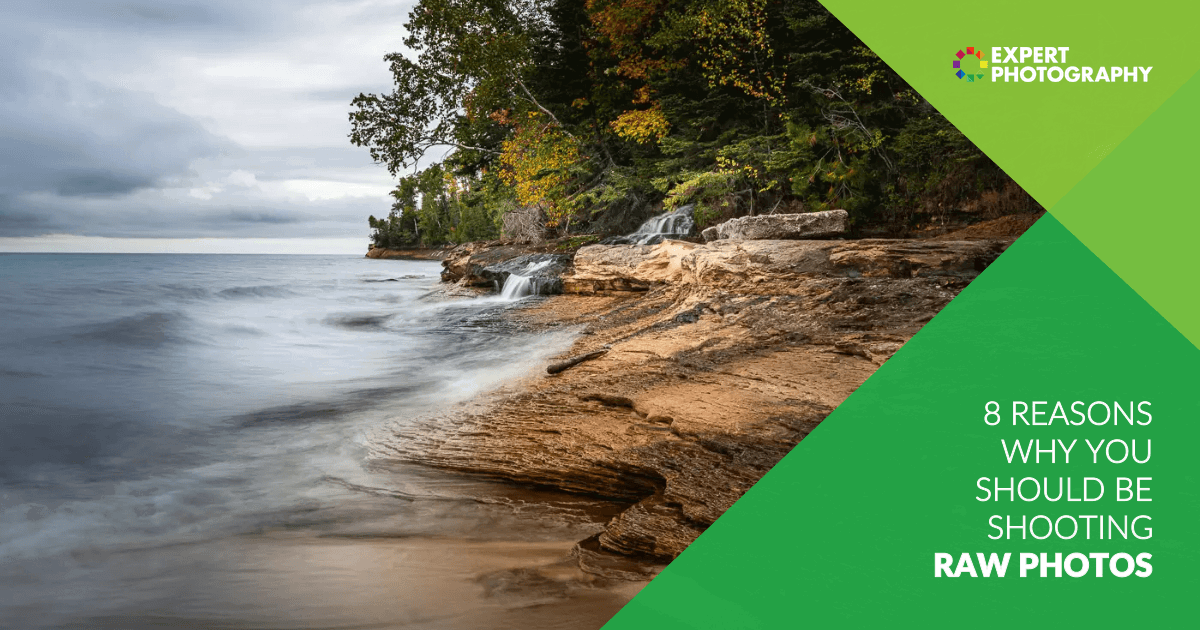
Shooting in RAW format unlocks a universe of editing possibilities, transforming your captured images from mere snapshots into stunning visual narratives. This section delves into the sophisticated techniques that leverage the full potential of RAW files, ensuring maximum flexibility and creative control throughout your post-processing workflow.
The inherent flexibility of RAW files means that adjustments made during editing are non-destructive, preserving the original image data. This allows for iterative refinement and experimentation without degrading image quality, a crucial advantage for achieving professional-grade results.
Non-Destructive Editing with RAW Files
Non-destructive editing is a cornerstone of working with RAW files, ensuring that your original image data remains untouched throughout the editing process. This approach provides unparalleled flexibility, allowing you to revisit and modify any adjustment at any time without compromising image quality.
When you open a RAW file in editing software, the program interprets the sensor data and applies your edits as instructions rather than directly altering the pixel information. These instructions are typically stored in a separate sidecar file (often with a .XMP extension) or within the catalog of the editing software. This means the original RAW file remains pristine, and you can always revert to the original or make further changes to existing edits.
- Preservation of Original Data: Your RAW file acts as a digital negative. All edits are applied as layers or instructions that can be toggled, adjusted, or deleted without permanently changing the underlying image data.
- Iterative Refinement: This allows for continuous improvement. You can make an adjustment, step back, and then decide to tweak it further or even undo it entirely.
- Multiple Versions: You can create and save multiple versions of the same RAW file with different edits, offering diverse creative interpretations without needing to export multiple copies until you’re ready.
- Software Independence (with sidecar files): When using sidecar files, your edits can often be transferred to different compatible software, though full compatibility is not always guaranteed.
Highlight and Shadow Recovery
One of the most significant advantages of RAW files is their ability to retain a wider dynamic range compared to JPEGs, which translates into a greater capacity for recovering detail in extreme highlight and shadow areas.
JPEGs, due to their compressed nature, often “clip” highlights (rendering them pure white with no detail) or crush shadows (rendering them pure black with no detail). RAW files, on the other hand, capture more tonal information, providing valuable data that can be brought back during post-processing.
- Understanding the Histogram: Always refer to your histogram. A well-exposed RAW file will have information spread across the tonal range. Avoid clipping on either end if possible, but know that RAW gives you room to recover if you’re close.
- Highlight Recovery: In your editing software, look for sliders labeled “Highlights,” “Whites,” or “Exposure.” Gently reducing these values can often reveal detail in blown-out areas that appeared lost in the JPEG preview. Be cautious not to overdo it, as this can introduce artifacts or an unnatural look.
- Shadow Recovery: Similarly, sliders for “Shadows,” “Blacks,” or “Brightness” can be used to lift dark areas. Increasing these values can reveal details in underexposed regions. However, excessive lifting of shadows can lead to increased noise and a loss of contrast.
- Tone Curve Adjustments: The tone curve offers more precise control over highlight and shadow recovery. By manipulating specific points on the curve, you can selectively brighten or darken particular tonal ranges without affecting others as drastically as global sliders.
- Example: Imagine a photo of a sunset with a bright sun on the horizon. A JPEG might show a pure white circle for the sun. A RAW file, however, might retain subtle gradients and textures within that sun, which can be recovered using highlight recovery tools, making the sun appear more natural and detailed.
Lens Corrections and Distortion Removal
Lenses, while essential for capturing images, can introduce optical imperfections such as distortion, vignetting, and chromatic aberration. RAW files contain metadata that allows editing software to automatically correct these issues, restoring the image to a more accurate representation.
These corrections are crucial for achieving technically sound images, especially when dealing with wide-angle lenses or specific shooting scenarios. Applying these corrections to RAW data ensures that the adjustments are made at the highest possible quality, before any other significant processing begins.
- Automatic Lens Profiles: Most modern editing software includes extensive libraries of lens profiles. When you open a RAW file, the software can often identify the camera and lens used and automatically apply the appropriate correction profile.
- Types of Corrections:
- Distortion: This refers to the bending of straight lines, often seen as barrel distortion (lines bulge outwards, common in wide-angle lenses) or pincushion distortion (lines bend inwards, common in telephoto lenses).
- Vignetting: This is the darkening of the image corners, which can be a characteristic of a lens or intentionally used for artistic effect. Lens correction can help even out the illumination.
- Chromatic Aberration: This appears as color fringing (often purple or green) along high-contrast edges, caused by the lens failing to focus all colors at the same point.
- Manual Adjustments: If automatic correction isn’t perfect or if you’re using a less common lens, most software also provides manual sliders to fine-tune distortion, vignetting, and chromatic aberration removal.
- Benefits: Applying these corrections ensures straight lines appear straight, corners are properly illuminated, and color fringing is eliminated, leading to a cleaner and more professional final image.
Color Profile and Tone Curve Adjustments for Creative Control
Beyond technical corrections, RAW files offer immense creative freedom through precise control over color profiles and tone curves, allowing you to shape the mood, style, and aesthetic of your images.
Color profiles dictate how colors are interpreted and displayed, while tone curves provide granular control over the brightness and contrast of specific tonal ranges. Mastering these tools allows for unique artistic expression and the ability to achieve virtually any desired look.
- Color Profiles:
- Understanding Color Spaces: Different color spaces (like sRGB, Adobe RGB, ProPhoto RGB) define the range of colors that can be represented. Working in a wider color space like ProPhoto RGB in your RAW editor can preserve more color information.
- Camera Profiles: Your camera applies its own interpretation of color when shooting JPEGs. RAW files allow you to choose from various camera profiles (e.g., Standard, Vivid, Neutral) or even use custom profiles to emulate specific film stocks or looks.
- Creative Color Grading: Advanced techniques involve adjusting individual color channels, HSL (Hue, Saturation, Luminance) sliders, and split toning to shift colors, enhance specific hues, or create dramatic color palettes.
- Tone Curves:
- The S-Curve: A common technique for adding contrast is the “S-curve,” where the mid-tones are slightly lifted and the shadows and highlights are slightly compressed. This enhances the visual punch of an image.
- Point Adjustments: The tone curve is a graph with an input (original brightness) on the x-axis and an output (adjusted brightness) on the y-axis. You can add points to the curve to precisely control the brightness of specific tonal ranges. For example, pulling down a point in the upper-mid tones will darken that specific range, while lifting a point in the lower-mid tones will brighten it.
- Luminance vs. RGB Curves: Most software offers both a Luminance curve (affecting brightness across all colors) and individual RGB curves (affecting red, green, and blue channels separately). Manipulating RGB curves allows for color shifts and creative color grading.
- Example: To achieve a vintage, faded look, you might lift the black point on the tone curve to create a “matte” effect, and then slightly desaturate the colors and shift the hue of the blues towards teal.
Converting RAW Files to Different Output Formats While Maintaining Quality
The final stage of the RAW editing workflow involves converting your master file into a format suitable for sharing, printing, or further use. This process requires careful consideration to preserve the quality and detail painstakingly achieved during editing.
While RAW is the most flexible format, it’s not universally compatible. Converting to formats like JPEG or TIFF is necessary, and understanding the nuances of this conversion is key to avoiding quality degradation.
- Choosing the Right Output Format:
- JPEG: Ideal for web use, social media, and general sharing. It’s a compressed format, so quality settings are crucial.
- TIFF: A lossless format, excellent for printing, archival purposes, or when further editing in other applications is planned. It results in larger file sizes.
- PSD (Photoshop Document): If you’re working extensively with Photoshop and want to retain layers and editing capabilities within that environment.
- Export Settings:
- Resolution: Export at the resolution required for your intended use. For web, 72-300 PPI is common. For print, 300 PPI is standard.
- Color Space: For web, sRGB is the most widely compatible color space. For print, Adobe RGB or ProPhoto RGB might be preferred depending on the printer’s capabilities.
- Quality/Compression: When exporting to JPEG, always choose the highest quality setting (e.g., 100 or 12) to minimize compression artifacts. Even at the highest setting, JPEG involves some compression.
- Sharpening: Apply output sharpening during the export process, tailored to the intended viewing medium (screen vs. print). Over-sharpening can introduce halos and artifacts.
- Example: If you’ve spent hours perfecting an image and want to print it at 16×20 inches, you would export it as a TIFF file at 300 PPI in Adobe RGB color space, ensuring the highest possible fidelity for the print. For sharing on Instagram, you would export a JPEG at a suitable resolution (e.g., 1080 pixels on the longest edge) in sRGB color space with high quality.
Practical Shooting Scenarios for RAW
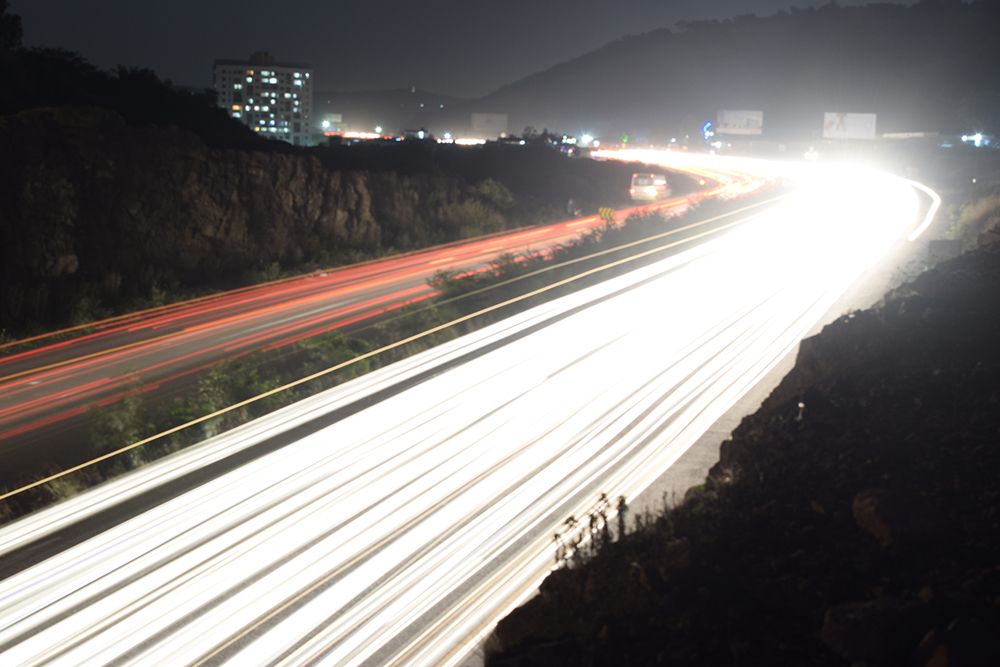
Shooting in RAW format unlocks a new level of creative control, particularly when faced with challenging photographic conditions. Understanding when and why to leverage RAW can significantly elevate the quality and adaptability of your images, allowing you to extract the most from every shot. This section explores specific scenarios where RAW truly shines and provides guidance on how to best utilize its capabilities.When photographers encounter scenes with extreme differences in light and shadow, or when shooting in low-light environments, the inherent flexibility of RAW files becomes invaluable.
Unlike JPEGs, which are processed in-camera with fixed settings, RAW files retain all the unprocessed data from the sensor. This raw data acts as a digital negative, offering a much wider dynamic range and color depth that can be manipulated in post-processing without significant degradation of image quality.
Low Light Photography
In low light, noise and detail loss are common challenges. Shooting in RAW allows for more aggressive noise reduction and shadow recovery in post-processing. For instance, a dimly lit indoor event or a twilight landscape might have areas that are severely underexposed. With a RAW file, you can lift these shadows considerably to reveal detail that would be lost or appear muddy in a JPEG.
RAW files provide up to 14 bits of color depth per channel, compared to JPEG’s 8 bits, offering a smoother tonal transition and a greater capacity for editing.
Consider a photograph taken at dusk where you want to capture both the subtle glow of streetlights and the darkening sky. A JPEG might expose for the lights, blowing out the sky, or expose for the sky, leaving the foreground too dark. A RAW file, however, contains enough information to recover detail in both the highlights and shadows during editing, allowing for a more balanced and atmospheric final image.
High Contrast Scenes
Scenes with a stark difference between the brightest and darkest areas, such as a bright window view from inside a dimly lit room or a sunrise/sunset with the sun’s disc intensely bright, pose a significant challenge for camera sensors. RAW capture excels in these situations by preserving the maximum amount of detail in both the highlights and shadows.For example, photographing a cityscape at sunset with the sun dipping below the horizon presents a scenario where the sky is brilliantly illuminated, while buildings and foreground elements are rapidly darkening.
By shooting in RAW, you can later adjust the exposure and recovery settings to bring out the textures in the buildings and the colors in the sky without introducing harsh banding or losing critical detail. This ability to “pull” information from extreme tonal ranges is a hallmark of RAW processing.
Specific Photography Genres
The benefits of RAW extend across various photographic genres, offering distinct advantages for each:
- Landscape Photography: For capturing the vast dynamic range of natural scenes, from bright skies to deep shadows in valleys, RAW is essential. It allows for precise control over color saturation, white balance, and exposure adjustments to bring out the subtle nuances of light and atmosphere.
- Portrait Photography: RAW files provide greater flexibility in skin tone correction, color grading, and retouching. Adjusting white balance precisely after the fact is crucial for flattering skin tones, and RAW’s wider color gamut allows for more subtle and natural-looking edits.
- Event Photography: In fast-paced event settings, lighting can be unpredictable. Shooting in RAW gives photographers the confidence to capture images in mixed lighting conditions, knowing they can correct color casts, recover details in shadows from flash, and adjust exposure to create a polished final product.
Best Practices for Shooting in RAW
To maximize the creative freedom and image quality offered by RAW, adopting certain best practices is highly recommended:
- Understand Your Camera’s RAW Capabilities: Familiarize yourself with your camera model’s specific RAW file format (e.g., .CR2, .NEF, .ARW) and its bit depth.
- Prioritize Exposure: While RAW offers significant editing latitude, it’s not a license to underexpose or overexpose carelessly. Aim for a well-exposed image as a starting point to minimize the need for extreme corrections. Use your histogram to guide your exposure.
- Set White Balance Appropriately: Although white balance is easily adjustable in RAW, setting it as close as possible in-camera can still provide a more accurate preview on your camera’s LCD and a better starting point for post-processing.
- Shoot in Continuous or Single Shot Mode as Needed: RAW files are larger than JPEGs, so ensure you have sufficient storage space on your memory cards and that your camera’s buffer can handle the burst rate if shooting action.
- Use a Consistent File Naming Convention: As you will be dealing with a large number of RAW files, implementing a clear and consistent naming system will be invaluable for organization in post-processing.
- Invest in Reliable Post-Processing Software: Software like Adobe Lightroom, Capture One, or Darktable are designed to handle and process RAW files effectively, offering powerful tools for editing.
File Management and Storage
Capturing images in RAW format unlocks immense creative potential during post-processing, but this flexibility comes with a responsibility: managing and storing these larger files effectively. Proper organization and backup strategies are crucial to ensure your valuable RAW images are accessible, safe, and easy to work with for years to come.The sheer volume of data in a RAW file means that careful planning is essential.
Without a robust system, your hard drives can fill up quickly, and finding specific images can become a frustrating, time-consuming task. Investing a little time upfront in setting up good habits will save you significant headaches down the line.
File Naming Conventions
Implementing a consistent and informative file naming convention is the bedrock of an organized RAW photo library. This practice moves beyond the default camera-generated names, which are often sequential and lack descriptive context. A well-structured name allows you to quickly identify the content of a file without needing to open it, significantly streamlining your workflow.Consider the following elements when developing your naming convention:
- Date: Including the date in a YYYY-MM-DD format (e.g., 2023-10-27) ensures chronological order, which is invaluable for sorting and searching.
- Event or Subject: Briefly describe the subject or event of the shoot (e.g., “Family_Vacation,” “Product_Shoot_A,” “Landscape_Sunrise”).
- Location (Optional): If relevant, add a location identifier (e.g., “Yosemite,” “Studio_B”).
- Sequence Number: A sequential number (e.g., 001, 002) within the specific shoot helps maintain order.
An example of a robust file name might look like: 2023-10-27_Family_Vacation_Beach_001.CR3. This format is easily sortable and provides immediate context. Many photo management applications can batch rename files, making this process efficient.
RAW Photo Library Organization
Beyond file naming, a hierarchical folder structure is essential for keeping your RAW photo library manageable. This system allows for logical grouping of your images, making retrieval and management straightforward.A recommended organizational strategy involves creating top-level folders for years, then subfolders for months, and finally, specific event or project folders within each month.For instance, your structure might resemble this:
- Photos
- 2023
- 10_October
- 2023-10-27_Family_Vacation
- 2023-10-15_Product_Shoot_A
- 11_November
- 2023-11-01_Landscape_Sunrise
- 10_October
- 2024
- 01_January
- 2023
This structure provides a clear path to any image, regardless of when it was taken or what it depicts. Within these folders, you can then place your RAW files, ensuring consistency across your entire library. Consider using cataloging software like Adobe Lightroom or Capture One, which offer powerful tools for tagging, ing, and virtual organization that complements your physical folder structure.
Backing Up Large RAW Files
The significant file sizes of RAW images necessitate a robust and multi-layered backup strategy. Losing your RAW files is akin to losing the original artwork, as the extensive editing flexibility is tied to these uncompressed masters. A comprehensive backup plan typically involves at least three copies of your data, stored in two different media types, with one copy offsite.Consider the following backup approaches:
- External Hard Drives: Utilize high-capacity external hard drives for local backups. Regularly copy your entire photo library to these drives. It is advisable to have at least two separate external drives for redundancy.
- Network Attached Storage (NAS): A NAS device offers centralized storage and can often be configured with RAID (Redundant Array of Independent Disks) for built-in redundancy. This provides a convenient and robust local backup solution.
- Cloud Storage Services: Services like Backblaze, Dropbox, or Google Drive offer offsite backup solutions. While they can be more expensive for the large volumes of RAW files, they provide crucial protection against local disasters like fire or theft. Ensure you select a service that offers unlimited storage or has a plan that accommodates your library size.
- Cloud-Based Photo Management: Platforms like Adobe Creative Cloud Photography Plan offer cloud storage for your Lightroom catalogs and Smart Previews, which can serve as a form of backup and access.
“The 3-2-1 backup rule: 3 copies of your data, on 2 different types of media, with 1 copy offsite.”
This principle is paramount when dealing with irreplaceable RAW image files. Regularly test your backups to ensure they are accessible and intact.
Storage Space Requirements for RAW Files
The storage demands of RAW files are considerably higher than those of JPEGs, a direct consequence of their uncompressed nature and the wealth of data they contain. Understanding these differences is crucial for planning your storage capacity.A typical RAW file from a modern DSLR or mirrorless camera can range from 20MB to over 100MB, depending on the camera model, sensor size, and compression settings (some RAW formats offer lossless or lossy compression).
In contrast, a high-quality JPEG, even at its largest setting, is usually between 5MB and 20MB.Let’s consider an example:
- If you shoot 500 photos per month in RAW format, and each RAW file averages 40MB, you would accumulate approximately 20GB of data per month.
- Over a year, this amounts to 240GB of RAW files.
- If you shoot 1000 photos per month, the monthly accumulation jumps to 40GB, and annually to 480GB.
Compare this to JPEGs:
- 500 photos per month at an average of 10MB per JPEG would be 5GB per month, or 60GB per year.
- 1000 photos per month at 10MB per JPEG would be 10GB per month, or 120GB per year.
This stark difference highlights why investing in ample storage, both for immediate use and for long-term archiving, is a necessary consideration for any photographer committed to shooting in RAW. Planning for future growth is also wise; your library will only expand over time.
Final Thoughts
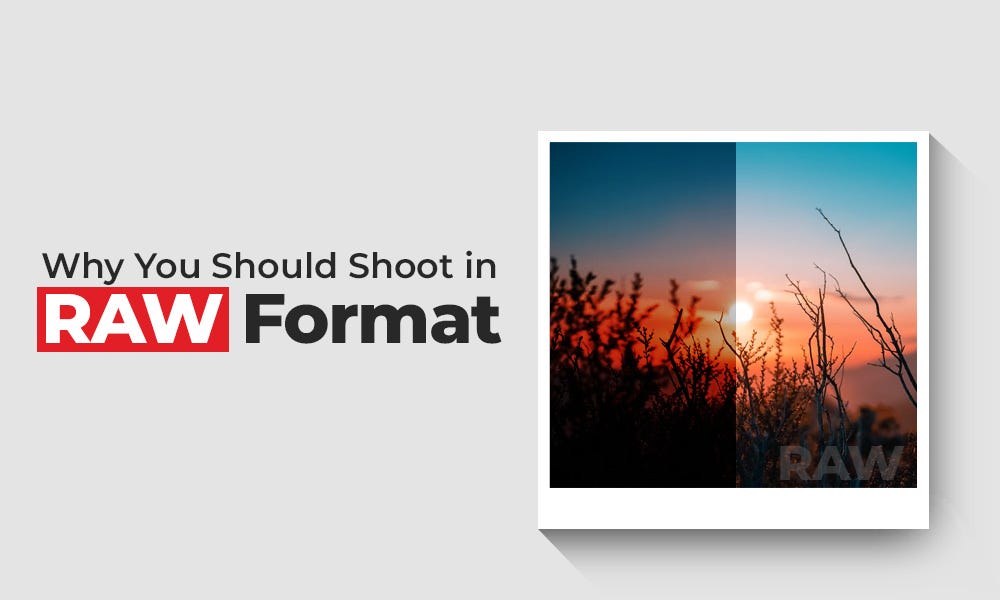
In conclusion, embracing the RAW format is a transformative step for any photographer seeking to elevate their craft. From the initial capture with carefully selected camera settings to the intricate art of advanced post-processing and efficient file management, this comprehensive exploration empowers you to harness the full spectrum of your creativity. By understanding and implementing these principles, you are well-equipped to produce stunning images with exceptional quality and artistic control, ensuring your photographic vision is realized to its utmost potential.