Embarking on the journey of perfecting skin tones in your photographs is an art form, one that bridges technical skill with an intuitive understanding of natural beauty. This guide is designed to demystify the process, offering a comprehensive exploration of how to edit skin tones naturally, ensuring your subjects radiate authentic vibrancy and lifelike quality.
We will navigate through the fundamental principles that underpin believable skin tone adjustments, highlighting common missteps to avoid and the crucial elements that contribute to a truly natural enhancement. From understanding the nuances of color balance and undertones to mastering the tools that allow for precise, subtle modifications, this exploration aims to equip you with the knowledge to elevate your editing prowess.
Understanding Natural Skin Tone Editing Principles
Achieving natural-looking skin tone adjustments is an art form that requires a deep understanding of how light interacts with skin and how our eyes perceive subtle variations. The core philosophy revolves around enhancing, rather than drastically altering, the existing characteristics of the skin. This means respecting the inherent warmth, coolness, and undertones that make each individual’s skin unique. When done correctly, the adjustments should be so seamless that the viewer doesn’t consciously register that editing has taken place; instead, they simply perceive a more vibrant and healthy-looking subject.The process of editing skin tones naturally is about refinement and balance.
It involves making intelligent decisions based on observation and a knowledge of color theory. The goal is to bring out the best in the skin’s natural beauty without creating an artificial or “plastic” appearance. This requires a delicate touch and a keen eye for detail, ensuring that all adjustments serve to enhance realism rather than detract from it.
The Core Philosophy of Natural Skin Tone Editing
The fundamental principle guiding natural skin tone editing is preservation and enhancement. Instead of aiming for a uniform, idealized complexion, the focus is on respecting and subtly amplifying the inherent qualities of the skin. This includes its natural warmth, the subtle variations in hue across different areas of the face, and the way light reflects off its surface. The ultimate aim is to make the skin appear as healthy and lifelike as possible, as if it were naturally illuminated and captured at its best.
“Natural skin tone editing is about bringing out the best in what’s already there, not creating something entirely new.”
Common Pitfalls to Avoid in Skin Tone Alteration
When attempting to modify skin tones, several common mistakes can lead to unnatural and unappealing results. These often stem from overcorrection, a misunderstanding of color theory, or a lack of attention to subtle details. Being aware of these pitfalls is crucial for maintaining authenticity in your edits.
- Over-saturation: Pushing colors too far can result in skin that looks unnaturally vibrant, like a cartoon character. This is particularly noticeable with reds and oranges, which can become garish.
- Ignoring Undertones: Skin has complex undertones (warm, cool, or neutral). Incorrectly adjusting the overall hue without considering these undertones can lead to skin appearing too pink, too yellow, or even greenish.
- Uniform Color Application: Applying a single color correction across the entire image without regard for how light falls on the skin can flatten the natural dimensionality and create an artificial look. Areas that are naturally warmer or cooler due to lighting should be respected.
- Excessive Smoothing/De-speckling: While removing blemishes is often desired, overdoing it can remove natural skin texture, pores, and subtle imperfections, leading to a plastic-like appearance.
- White Balance Errors: An incorrect white balance can cast an unwanted color shift across the entire image, making skin tones appear too blue (cool) or too yellow/orange (warm), which is rarely natural.
- Ignoring Highlights and Shadows: The way light interacts with skin creates natural variations in tone. Failing to maintain these subtle shifts in highlights and shadows will result in a flat and artificial look.
Essential Elements for Believable Skin Tone Enhancement
Creating believable skin tone enhancements relies on a combination of technical skills and an understanding of visual perception. These elements work in concert to ensure that your adjustments look authentic and serve to improve the overall image without drawing undue attention to themselves.
Color Balance and Harmony
The foundation of natural skin tone editing lies in achieving a balanced color palette. This involves understanding the interplay of different color channels and how they affect the perception of skin.
| Element | Description | Impact on Naturalness |
|---|---|---|
| White Balance | Ensuring that white objects in the image appear white, which sets the overall color temperature. | A correct white balance is paramount; incorrect settings lead to unnatural casts (e.g., too blue or too yellow). |
| Hue, Saturation, and Luminance (HSL) Adjustments | Fine-tuning specific color ranges (like reds, oranges, and yellows) that dominate skin tones. | Subtle adjustments to HSL can bring out healthy tones without overdoing it. Too much saturation or incorrect hue shifts are common errors. |
| Color Grading | Applying a consistent color tone or “look” to the image while ensuring skin tones remain within a natural range. | Overly stylized color grades can desaturate or shift skin tones unnaturally. The goal is to complement, not overpower. |
Maintaining Texture and Detail
Skin is not a smooth, uniform surface. It has pores, fine lines, and subtle variations that contribute to its natural appearance. Preserving these details is crucial.
- Pore and Blemish Management: Instead of outright removal, consider subtle healing or cloning to reduce distracting elements while retaining the underlying texture.
- Highlight and Shadow Retention: The way light hits the skin creates natural gradients. These should be preserved or subtly enhanced, not flattened.
- Micro-contrast: A slight increase in micro-contrast can add a sense of depth and realism to the skin, making it appear more defined without looking harsh.
The Importance of Observing Real-World Skin Tones and Their Variations
The most effective way to edit skin tones naturally is to constantly refer to and understand how skin looks in real life under various lighting conditions. Our brains are incredibly adept at recognizing what looks “off,” so grounding your edits in reality is essential.
Understanding Skin’s Natural Palette
Skin tones are not monolithic; they are a complex interplay of pigments and reflect light in diverse ways. Observing real-world skin helps to internalize these nuances.
- Warm vs. Cool Undertones: Notice how some individuals have skin that leans towards yellow or peach (warm), while others have skin that appears more pink or blue (cool). Many people are a combination.
- Regional Variations: Different ethnicities and geographical locations have distinct baseline skin tones, each with its own characteristic undertones and color depth.
- Lighting Effects: Observe how different light sources (sunlight, artificial light, shade) alter the appearance of skin color and temperature. Sunlight often imparts a warmer glow, while indoor lighting can sometimes be cooler or more yellow.
The Impact of Environment on Skin Appearance
The environment plays a significant role in how skin tones are perceived. Paying attention to these factors during editing can dramatically improve naturalness.
“Real-world observation is the ultimate reference for natural skin tone editing.”
- Natural Light: When shooting outdoors, the soft, diffused light of golden hour (shortly after sunrise or before sunset) often produces the most flattering and natural skin tones. Direct midday sun can be harsh and create strong shadows.
- Indoor Lighting: Artificial lights, such as incandescent bulbs, can cast a strong yellow or orange hue, while fluorescent lights can introduce a greenish or bluish cast. Understanding these casts helps in correcting them.
- Reflected Light: The colors of the surrounding environment can reflect onto the skin, subtly influencing its tone. For instance, skin near a green bush might pick up a faint green cast.
By continuously referencing real-world examples and understanding the underlying principles of light and color interaction with skin, you can develop an intuitive sense for what constitutes a natural and appealing skin tone edit. This observational practice is as vital as mastering the technical tools.
Essential Tools and Techniques for Skin Tone Correction
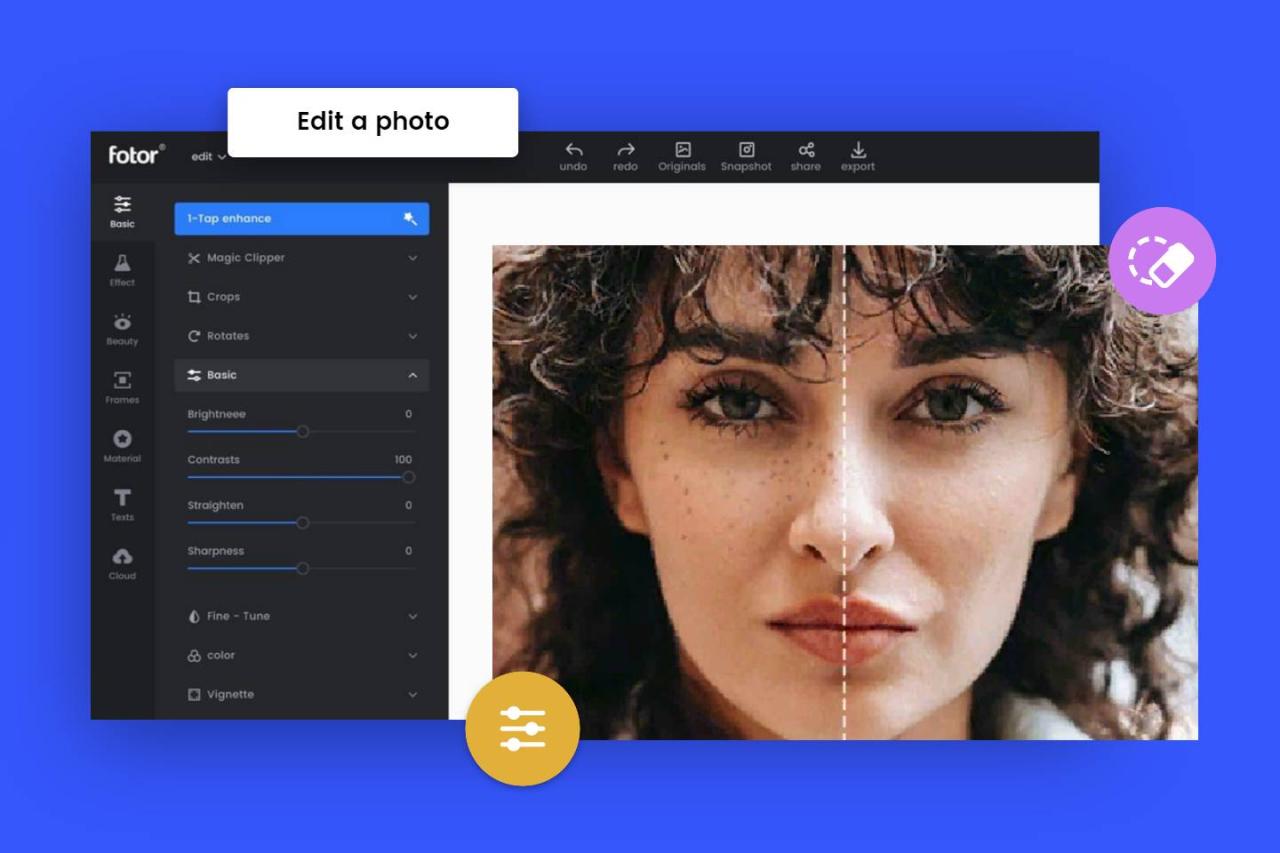
Achieving natural-looking skin tones in your photographs is a crucial aspect of retouching. This involves understanding the interplay of colors and employing the right tools to subtly adjust them. The goal is to enhance the existing skin hues, bringing out their best qualities without making them appear artificial or overprocessed.The process of skin tone correction relies heavily on sophisticated editing software and a nuanced understanding of color theory.
By utilizing specific adjustment layers and tools, photographers and retouchers can precisely target and refine the colors within an image, ensuring that skin tones appear healthy, vibrant, and true to life.
Primary Software and Tools for Photo Editing
The landscape of photo editing software offers a robust selection of tools for image manipulation, with several standing out as industry standards for their comprehensive features and user-friendly interfaces. These platforms provide the foundational environment for all types of image adjustments, including the intricate work of skin tone correction.The most widely recognized and utilized software for professional photo editing includes:
- Adobe Photoshop: A powerful raster graphics editor renowned for its extensive array of tools, layers, masks, and filters, offering unparalleled control over every pixel. It is the de facto standard for retouching and compositing.
- Adobe Lightroom: Primarily a raw photo processor and image organizer, Lightroom excels at global adjustments, color grading, and non-destructive editing. Its tools are highly effective for initial color balancing and enhancing overall image mood.
- Capture One: A professional-grade raw converter and tethering software that offers advanced color editing capabilities, including sophisticated color balance tools and layer-based editing. It is favored by many for its color rendering and tethering features.
- Affinity Photo: A more affordable yet highly capable alternative to Photoshop, offering a professional suite of editing tools, including advanced color correction and retouching features.
These software packages provide the digital canvas and the essential instruments required to perform detailed color adjustments.
Adjustment Layers and Tools for Color Balance
Within these editing platforms, specific adjustment layers and tools are dedicated to manipulating color balance, allowing for precise control over the hues, saturation, and luminosity of an image. Understanding their functions is key to achieving natural skin tones.The primary tools and adjustment layers used for color balance include:
- Color Balance Adjustment: This tool allows you to adjust the overall color mix of an image by targeting shadows, midtones, and highlights independently. You can shift the color balance towards cyan/red, magenta/green, or yellow/blue. For skin tones, this is invaluable for correcting unwanted color casts.
- Hue/Saturation Adjustment: While seemingly straightforward, this can be used with targeted selections to adjust the hue (the pure color), saturation (intensity of the color), and lightness of specific color ranges, including skin tones.
- Selective Color Adjustment: This powerful tool enables you to adjust the CMYK components of specific color ranges within an image. For skin tones, you can target reds, yellows, and magentas to fine-tune the color without affecting other parts of the image.
- Curves Adjustment: Curves offer a more advanced and precise way to control tonal and color adjustments. By manipulating the RGB channels (Red, Green, Blue) individually, you can make subtle or dramatic changes to color balance and contrast.
- White Balance Tool (Eyedropper): Many raw processors and editing software have a white balance eyedropper tool. This is used to click on a neutral gray or white area in the image to automatically set the correct white balance, thereby correcting color casts.
- Color Lookup Tables (LUTs): While often used for creative grading, LUTs can also be used subtly to correct color casts or to apply a specific color science that enhances natural skin tones.
These tools provide a granular level of control, enabling retouchers to address color imbalances with accuracy.
Procedure for Correcting White Balance Issues Affecting Skin Tones
White balance is fundamental to accurate color representation, and incorrect white balance is a common culprit behind unnatural skin tones. A systematic approach ensures that the image’s colors are neutralized, allowing skin tones to appear as intended.A step-by-step procedure for correcting white balance issues is as follows:
- Assess the Color Cast: Examine the image to identify any dominant color casts. Skin tones might appear too blue (cool), too yellow/orange (warm), too green, or too magenta. This assessment is often best done under neutral lighting conditions.
- Utilize the White Balance Tool: In raw editing software like Lightroom or Capture One, the most effective method is to use the white balance eyedropper tool. Look for an area in the image that should be neutral, such as a white or gray card, a white piece of clothing, or even a neutral gray area in the background. Clicking this area will automatically adjust the white balance.
- Manual Adjustment with Sliders: If an eyedropper isn’t effective or an ideal neutral area is unavailable, manual adjustment is necessary. Use the Temperature slider (warmth/coolness) and Tint slider (green/magenta) to neutralize the color cast. Move the Temperature slider towards blue if the image is too warm, and towards yellow if it’s too cool. Adjust the Tint slider to counteract any green or magenta shifts.
- Refine with Curves or Color Balance: For more precise correction, especially if the color cast varies across different tonal ranges, use the Curves or Color Balance adjustment layers. For example, if the highlights have a yellow cast and the shadows a blue cast, you can address these independently using the respective channels in Curves or by targeting specific tonal ranges in Color Balance.
- Targeted Adjustments for Skin Tones: After initial global correction, zoom in on the skin areas. If the skin still appears slightly off, use Selective Color or Hue/Saturation adjustments to fine-tune specific color ranges within the skin. For instance, you might slightly reduce the yellow in the reds to make the skin appear less orange, or add a touch of magenta to counteract a greenish hue.
- Check Against Reference: Compare the corrected skin tones to your memory of the subject or to reference images with accurate skin tones. The goal is a healthy, natural appearance.
The key is to make subtle adjustments that correct the cast without introducing new color artifacts.
Workflow for Subtle Color Grading Enhancing Natural Skin Hues
Subtle color grading is about enhancing the existing character of the skin tones, not fundamentally altering them. This approach focuses on bringing out the warmth, vibrancy, and depth inherent in the skin, creating a more polished and appealing final image.A workflow for subtle color grading that enhances natural skin hues involves the following steps:
- Establish a Neutral Base: Before any creative grading, ensure the white balance and basic color correction are accurate. This provides a clean slate to work from.
- Identify Dominant Skin Tones: Observe the primary colors present in the skin. Most skin tones have underlying reds and yellows. The goal is to complement these, not overpower them.
- Use Targeted Color Balance or Curves:
- For Warmth: If the skin needs a touch more warmth, a slight shift towards yellow and red in the midtones using the Color Balance tool can be effective. Alternatively, with Curves, a subtle upward curve on the red and green channels in the midtones can introduce warmth.
- For Coolness/Neutrality: If the skin appears too ruddy, a very slight shift towards cyan in the reds or a reduction in red in the midtones might be needed.
The key here is to make minute adjustments, often barely perceptible on their own, but which collectively contribute to a more pleasing result.
- Enhance Red and Yellow Channels: Within the Selective Color adjustment, or by targeting the Red and Yellow channels in Curves, you can subtly boost the vibrancy of these colors within the skin. For instance, slightly increasing the red or yellow percentage in the “Reds” and “Yellows” color ranges in Selective Color can add a healthy glow.
- Control Luminosity: Ensure the skin tones are not too dark or too bright. Use Curves to gently lift the midtones if the skin looks dull, or to subtly deepen them for more contrast, being careful not to lose detail.
- Consider the Environment: The lighting conditions of the shoot significantly influence skin tones. If the light was warm, a subtle enhancement of that warmth is natural. If the light was cooler, aim for a balanced correction that doesn’t fight the ambient light too aggressively.
- Apply Global Adjustments Sparingly: While targeted adjustments are crucial, a very subtle global adjustment can unify the image’s color palette. A slight warming or cooling of the entire image, or a subtle shift in saturation, can tie everything together.
- Review and Refine: Zoom out to view the entire image and zoom in to inspect the skin details. Toggle the adjustment layers on and off to compare the before and after. The aim is for the skin to look its best, not to look heavily edited.
This workflow emphasizes a delicate touch, focusing on amplifying the inherent beauty of natural skin hues rather than imposing an artificial color scheme.
Achieving Natural Skin Tones with Color Adjustments
Mastering natural skin tones in editing is a nuanced art that relies on a deep understanding of color theory and precise application of adjustment tools. This section delves into the core color adjustments that allow you to sculpt realistic and appealing skin tones, transforming potentially problematic colors into harmonious and lifelike hues.Understanding how hue, saturation, and lightness interact is fundamental to achieving natural-looking skin.
These three primary sliders in most editing software provide granular control over the color characteristics of any selected area, including skin.
Effective Use of Hue, Saturation, and Lightness Sliders for Skin
The hue slider shifts the color itself along the color wheel. For skin, this often means nudging towards warmer yellows or cooler reds to correct unnatural casts. Saturation controls the intensity of the color; too much can make skin look artificial, while too little can appear desaturated and dull. Lightness adjusts the overall brightness of the color, which is crucial for defining form and preventing flat-looking skin.
To effectively use these sliders on skin:
- Hue: Observe the dominant color cast. If the skin looks too orange, a slight shift towards red might be needed. If it appears too yellow, a subtle move towards green can help. For instance, a portrait with skin that looks slightly jaundiced might benefit from a slight shift in hue away from yellow and towards red.
- Saturation: This is often the most impactful slider for natural skin. Over-saturation is a common pitfall. Aim for a subtle richness rather than a vibrant intensity. For example, if skin tones are popping unnaturally, reducing saturation by 10-20% can often bring them back to a believable level.
- Lightness: Use this to fine-tune the overall brightness of the skin. Be cautious not to blow out highlights or crush shadows, as this diminishes realism. Adjusting lightness can also help separate skin from its background or other elements in the image.
Color Balancing Specific Skin Tones
Different skin tones require different approaches to color balancing. Warm skin tones often have more yellow and orange undertones, while cool tones lean towards red and blue. Neutral tones exhibit a balance of both. The goal is to enhance the inherent warmth or coolness without introducing artificiality.
Here’s a guide to color balancing common skin tones:
- Warm Skin Tones: These often benefit from subtle enhancements of their existing warmth. A slight boost in yellow or orange saturation can be effective. However, be mindful of pushing too far into overly golden or brassy tones. For example, in a portrait of someone with naturally warm skin, a slight increase in the saturation of the yellow channel can add a healthy glow.
- Cool Skin Tones: These may require subtle adjustments to bring out their natural coolness without making them appear bruised or overly blue. A slight desaturation of yellows and an increase in blues or magentas can help. For instance, if cool-toned skin appears too sallow, a minor shift towards magenta can introduce a more natural, rosy undertone.
- Neutral Skin Tones: The aim here is to maintain balance. If a neutral tone leans slightly warm, a touch of cyan in the color balance tools can counteract it. If it leans cool, a hint of red can restore neutrality. The key is to identify the subtle cast and make minimal, targeted adjustments.
Methods for Desaturating Overly Vibrant or Artificial-Looking Skin Colors
Unnatural vibrancy in skin tones is a frequent issue, often stemming from camera settings, lighting, or aggressive initial processing. The most direct method to correct this is by reducing saturation.
Several techniques can be employed to achieve this:
- Global Saturation Reduction: The simplest approach is to lower the overall saturation slider. However, this affects all colors in the image, so it’s best used sparingly or in conjunction with selective adjustments.
- Selective Hue/Saturation Adjustments: Most editing software allows for targeted saturation adjustments by color range. Identify the specific colors that are too vibrant in the skin (often oranges, reds, and yellows) and reduce their saturation individually. For example, if the skin is too intensely orange, select the orange range in the HSL panel and decrease its saturation.
- Luminance Adjustments: Sometimes, vibrant colors are perceived as such because they are also too bright. Reducing the luminance of specific color channels (e.g., orange and red) can make them appear less intense without altering their hue significantly.
- Color Grading Tools: Advanced color grading tools can also be used to subtly desaturate specific color ranges within the skin tones.
Comparing the Impact of Different Color Correction Approaches on Skin Realism
The choice of color correction approach significantly influences the perceived realism of skin tones. A heavy-handed application of any single tool can lead to artificiality, while a combination of precise, subtle adjustments often yields the most natural results.
Consider these comparisons:
- Global vs. Selective Adjustments: Applying saturation adjustments globally might desaturate other elements like clothing or backgrounds to an undesirable extent. Selective adjustments, targeting only the skin tones, preserve the vibrancy of other image components, leading to a more balanced and realistic final image.
- Hue Shifts vs. Saturation Reductions: While hue shifts can correct color casts, excessive shifts can make skin appear unnatural. Reducing saturation is often a safer bet for bringing down overpowering colors without drastically altering the fundamental tone. For instance, a skin tone that looks too yellow might be corrected by a slight hue shift towards red, but if that looks artificial, a simple reduction in yellow saturation might be more effective.
- Using Color Balance vs. Curves: Color balance tools offer a direct way to add or subtract color casts. Curves, on the other hand, provide more complex control over tonal ranges and color channels simultaneously. While curves can achieve very sophisticated results, they demand a higher level of expertise to avoid introducing unwanted artifacts or unnatural color shifts compared to the more intuitive color balance sliders.
Guide on Using Split Toning to Add Subtle, Natural Warmth or Coolness to Skin
Split toning is a powerful technique for adding complementary color tones to the highlights and shadows of an image, which can be used to subtly enhance or correct skin tones in a very natural-looking way.
Here’s how to effectively use split toning for skin:
- Understanding the Concept: Split toning involves applying one color to the highlights and another to the shadows. For skin, this is often used to introduce subtle warmth into the mid-tones and highlights, or to add a touch of coolness to the shadows for depth.
- Adding Natural Warmth: To add warmth, select a warm color (like a subtle yellow, peach, or light orange) for the highlights and mid-tones. Keep the saturation low and the balance towards the highlights. For example, a portrait with slightly cool ambient lighting might benefit from a touch of warm yellow applied to the highlights to mimic natural sunlight.
- Adding Subtle Coolness: To introduce a touch of coolness, select a cool color (like a faint blue or cyan) for the shadows. This can add depth and a more sophisticated feel, especially in low-light portraits. For instance, in a dimly lit scene, a very subtle blue in the shadows can enhance the mood without making the skin look unnatural.
- Balancing Warmth and Coolness: The key to natural split toning is subtlety. Aim for colors that are barely perceptible. The goal is not to repaint the skin with color but to add a nuanced tint that enhances the existing tones. Overdoing split toning can lead to stylized, unrealistic effects.
- Targeting Skin Tones: When applying split toning, it’s often beneficial to do so with a soft brush in a selective editing layer, allowing you to precisely control where the effect is applied. This ensures that only the skin tones receive the desired tint, leaving other parts of the image unaffected or treated differently.
The art of natural skin tone editing lies in subtlety and precision. Aim to enhance, not to create something entirely new.
Working with Skin Undertones and Overtones
Understanding and effectively manipulating skin undertones and overtones is a crucial step in achieving truly natural-looking skin edits. While overall color balance addresses the general hue, undertones and overtones delve into the subtle nuances that give skin its unique character and depth. Ignoring these can lead to skin that looks flat, artificial, or even unhealthy.Skin undertones are the underlying colors beneath the surface of the skin, which remain constant regardless of surface complexion.
Common undertones include cool (blue, pink), warm (yellow, golden), and neutral. Overtones, on the other hand, refer to the surface color, which can be influenced by factors like sun exposure, redness, or sallowness. Mastering the interplay between these two is key to creating realistic and flattering skin tones.
Identifying Skin Undertones
Accurately identifying a person’s skin undertone is fundamental to natural editing. This involves observing the skin’s color in neutral lighting conditions, often by looking at areas not directly exposed to the sun, such as the inner wrist or neck. The undertone dictates the direction of color correction needed to achieve a balanced and lifelike appearance.
Consider the following indicators when assessing skin undertones:
- Vein Color: In natural light, veins on the wrist can offer clues. Blue or purple veins often suggest a cool undertone, while green veins typically indicate a warm undertone. If veins appear to be a mix of blue and green, or if it’s difficult to discern a dominant color, a neutral undertone is likely.
- Jewelry Test: Observe how gold and silver jewelry looks against the skin. If silver appears more flattering, it often points to a cool undertone. If gold looks better, it suggests a warm undertone. Both can look good on neutral undertones.
- Sun Reaction: How the skin reacts to sun exposure can also be indicative. Those who tan easily and rarely burn often have warm undertones, while those who burn easily and tan minimally may have cool undertones.
Neutralizing Unwanted Color Casts
Unwanted color casts, such as green or magenta, can appear in skin tones due to various lighting conditions or camera settings. Neutralizing these casts is essential for restoring a natural and healthy look to the skin. This involves introducing the complementary color to counteract the undesirable hue.
Strategies for neutralizing common color casts include:
- Green Casts: Green casts in skin tones are often caused by artificial lighting or reflections from green objects. To neutralize a green cast, introduce magenta. In many editing software, this can be achieved by adjusting the Hue/Saturation sliders for greens or by using a color balance adjustment to add magenta to the shadows, midtones, or highlights, depending on where the cast is most prominent.
For example, in Adobe Photoshop, using the Color Balance adjustment layer and moving the slider towards Magenta in the Green channel (which is counterintuitive but affects the overall green balance) can effectively reduce a green cast.
- Magenta Casts: Magenta casts can arise from certain types of lighting or camera sensors. To counteract magenta, introduce green. This is typically done by adjusting the Hue/Saturation of the reds or magentas, or by using the Color Balance tool to add green. A selective color adjustment targeting reds and moving towards yellow or green can also be effective.
Enhancing Subtle Undertones
Beyond neutralization, subtle enhancement of desirable undertones can bring warmth and vibrancy to the skin, making it appear more alive and healthy. This is about adding, rather than removing, color in a controlled and natural manner, focusing on the inherent qualities of the skin.
Techniques for enhancing subtle golden or rosy undertones include:
- Golden Undertones: To bring out golden undertones, particularly in warmer skin tones, a slight adjustment towards yellow or gold can be beneficial. This can be achieved using selective color adjustments by targeting the reds and yellows within the skin. A subtle increase in saturation within these ranges, or a slight shift in hue towards orange or yellow, can add a healthy glow.
For instance, using the “Selective Color” tool in Photoshop, targeting the “Reds” and slightly increasing the “Yellow” slider, and perhaps a touch of “Cyan” to counteract any unwanted warmth, can enhance a golden quality.
- Rosy Undertones: For a touch of healthy rosiness, especially in cooler or neutral undertones, a subtle introduction of red or pink can be effective. This is best done with fine-tuned adjustments to the red channel or by targeting specific color ranges. Overdoing this can lead to an artificial blush, so precision is key. A slight boost in saturation for reds, or a subtle shift in hue towards magenta within the red range, can add a natural flush.
Targeting Specific Color Ranges with Selective Color Adjustments
Selective color adjustments are powerful tools for fine-tuning skin tones because they allow you to target and modify specific color ranges without affecting the entire image. This precision is invaluable when dealing with the complex interplay of colors within human skin.
The application of selective color adjustments for skin tone editing involves:
- Understanding Color Channels: In selective color, you can adjust the CMYK (Cyan, Magenta, Yellow, Black) values within specific color ranges (Reds, Yellows, Greens, Cyans, Blues, Magentas, Whites, Neutrals, Blacks). For skin tones, the “Reds” and “Yellows” channels are most commonly manipulated.
- Neutralizing Yellows: If skin appears too sallow, you can reduce the amount of yellow in the “Yellows” channel and potentially add a touch of blue to counteract it.
- Adjusting Reds: To manage redness or add warmth, you can adjust the “Reds” channel. Reducing cyan in the reds can make them warmer (more magenta/yellow), while increasing cyan can make them cooler (more blue).
- Balancing Greens and Blues: While less common for direct skin tone correction, subtle adjustments in the “Greens” and “Blues” channels can sometimes help refine undertones or remove slight color casts. For example, a slight reduction in green within the skin’s color range can help neutralize an unwanted greenish tint.
- Example Workflow: Imagine a portrait with slightly too much yellow in the skin. You would select the “Yellows” channel in the Selective Color adjustment and slightly decrease the “Yellow” slider. You might also subtly increase the “Cyan” slider to cool down any excess warmth. If the skin has a slight greenish cast, you would select the “Greens” channel and add a touch of magenta.
“The goal of natural skin tone editing is not to erase imperfections, but to reveal the inherent beauty and health of the skin by understanding and respecting its underlying colors.”
Masking and Selective Editing for Precision

Achieving natural skin tones often requires more than global adjustments. Sometimes, specific areas of the skin need individual attention to correct color casts, even out tones, or enhance subtle details. This is where masking and selective editing become invaluable tools, allowing for precise control over where and how your edits are applied. By isolating specific parts of an image, you can make targeted changes without affecting other areas, leading to a much more refined and natural-looking result.Masking is a fundamental concept in photo editing that involves creating a selection or “mask” to define which parts of an image are affected by an adjustment.
Think of it like using a stencil; you only paint or modify the area that’s exposed through the stencil. In photo editing software, masks are typically represented by grayscale images, where white areas indicate full opacity (the adjustment is fully applied), black areas indicate full transparency (the adjustment is not applied), and shades of gray represent partial opacity. This allows for gradual transitions and nuanced application of edits.
Creating Precise Masks for Skin Areas
The ability to accurately select skin areas is crucial for natural-looking edits. This ensures that your color corrections or enhancements are applied only where intended, preventing unnatural shifts in backgrounds or other elements of the photograph. Modern editing software offers a variety of tools to facilitate this process, from automated selections to manual brushwork.A common workflow involves using selection tools such as the “Quick Selection Tool” or “Object Selection Tool” in Adobe Photoshop.
These tools leverage AI to intelligently identify subjects and areas, often providing a good starting point for a skin mask. For more complex or precise selections, the “Pen Tool” is a powerful option, allowing you to draw vector paths that can be converted into highly accurate selections. When working with skin, it’s often beneficial to zoom in closely to capture all the nuances of the facial contours, hairline, and any other skin features.For areas with less defined edges, such as hair or softer skin transitions, the “Select and Mask” workspace offers advanced refinement options.
Here, you can use tools like the “Refine Edge Brush Tool” to intelligently select areas like hair strands or soft skin edges, ensuring a seamless blend.
Best Practices for Feathering Mask Edges
The transition between a masked area and the rest of the image is critical for achieving natural results. Harsh, abrupt edges on a mask can make edits look artificial and unblended. Feathering involves softening these edges, creating a gradual transition that mimics how light naturally falls and blends on surfaces.When applying feathering, the amount needed will vary depending on the subject, the focal length of the lens used, and the desired effect.
Generally, for portraits, a subtle feather is sufficient. Excessive feathering can make the adjustment appear to bleed into unintended areas, diminishing the precision of your selective editing.In most editing software, feathering can be applied either during the mask creation process or by adjusting the mask properties afterward. For example, in Adobe Photoshop, when using the “Select and Mask” workspace, there’s a “Feather” slider that allows you to control the softness of the mask edge.
A value of 1-5 pixels is often a good starting point for portraits, but it’s always best to visually assess the result and adjust accordingly.
Applying Different Adjustments to Various Skin Areas Independently
Natural skin tones are rarely uniform across the entire body or face. Different areas may have subtle variations in color, light, and texture due to factors like blood flow, sun exposure, and underlying skin conditions. Selective editing allows you to address these variations individually, leading to a more realistic and harmonious final image.A common scenario is adjusting the color of the cheeks, which might have a warmer, redder tone, differently from the forehead, which might be cooler or more prone to oiliness.
This can be achieved by creating separate masks for each area and applying specific adjustments to each.Here’s a structured approach to applying different adjustments to various skin areas:
- Identify Variations: Carefully examine the skin for areas that exhibit different color casts, brightness levels, or saturation. For instance, the T-zone might appear shinier and warmer than the cheeks.
- Create Specific Masks: For each distinct area requiring a unique adjustment, create a dedicated mask. This might involve creating a mask for the forehead, another for the cheeks, and perhaps one for the neck.
- Apply Targeted Adjustments: With each mask active, apply the necessary color correction, exposure adjustment, or saturation change. For example, if the forehead has a slight green cast, you might apply a magenta tint to its mask. If the cheeks are too red, you might reduce the red saturation within their mask.
- Refine Masks and Adjustments: After applying initial adjustments, review the results. You may need to refine the mask edges using feathering or by painting directly on the mask to ensure a seamless blend. It’s also common to adjust the opacity of the adjustment layer to fine-tune the intensity of the edit.
- Utilize Adjustment Layers: Always use non-destructive adjustment layers (e.g., Hue/Saturation, Color Balance, Curves) with masks. This allows you to revisit and modify your edits at any time without degrading the original image data.
By employing this meticulous approach, you can sculpt the skin’s appearance with precision, ensuring that each adjustment contributes to an overall natural and lifelike portrayal.
Dealing with Skin Imperfections Naturally
Achieving natural-looking skin tones often involves addressing minor imperfections without making the skin appear overly processed or artificial. This section focuses on subtle yet effective techniques to refine skin texture and reduce the prominence of common blemishes. The goal is to enhance the skin’s inherent beauty rather than to create an entirely new complexion.Refining skin texture and reducing the appearance of imperfections requires a delicate touch.
The key is to work with the existing skin, softening its less desirable aspects rather than eradicating them completely. This approach ensures that the final result retains a lifelike quality, respecting the natural variations that make skin unique.
Reducing Redness and Blotchiness
Excessive redness or blotchiness can detract from a natural skin tone. Instead of aggressive color correction, subtle adjustments are paramount. The aim is to neutralize the unwanted warm tones without draining the skin of its natural vitality.
Strategies for reducing redness include:
- Targeted Hue and Saturation Adjustments: In editing software, locate the specific color range corresponding to the redness (often within the reds and oranges). Slightly decrease the saturation of these tones. Simultaneously, a minor shift in hue towards green can help neutralize red. This should be done incrementally, observing the effect on the skin.
- Selective Color Correction: Utilize the Selective Color adjustment layer. Within the “Reds” and “Yellows” channels, reduce the “Cyan” component. This subtracts red and adds green, effectively counteracting the redness. Be cautious not to overdo this, as it can lead to a desaturated or unnatural appearance.
- Cooling Color Balance: A slight adjustment to the overall color balance towards cooler tones can also help mitigate redness. This can be achieved through the Color Balance or White Balance tools, making very subtle shifts.
- Low-Opacity Brush with Green Tint: For extreme cases, a very soft brush with a low opacity (around 5-10%) and a subtle green tint can be used to gently paint over areas of pronounced redness. This mimics the natural complementary color effect.
Softening Minor Blemishes and Uneven Textures
Minor blemishes, such as small pimples or enlarged pores, and uneven skin texture can be softened without resorting to heavy cloning or smoothing. The objective is to reduce their prominence and visual distraction.
Techniques for subtle softening include:
- Frequency Separation: This advanced technique separates the image into low-frequency (color and tone) and high-frequency (texture) layers. By working on the low-frequency layer, you can gently blur imperfections without affecting the skin’s natural texture on the high-frequency layer. This preserves detail and realism.
- Healing and Cloning with Care: When using healing or cloning tools, select source areas with similar texture and lighting. Apply these tools with a low opacity brush and in small, controlled strokes. Avoid making the repaired area perfectly smooth; aim to blend it seamlessly with the surrounding skin.
- Gaussian Blur on a Duplicate Layer: For very minor texture issues, duplicating the layer and applying a very subtle Gaussian blur (often 1-2 pixels) can help. Then, use a layer mask to apply this blur selectively only to the areas that need softening, ensuring the majority of the skin’s texture remains intact.
- Dodge and Burn for Texture: While often used for definition, subtle dodge and burn can also be used to reduce the appearance of texture. Lightly dodging (brightening) the peaks of texture and burning (darkening) the valleys can create a flatter, smoother appearance. This requires a very soft brush and low exposure settings.
Reducing the Appearance of Dark Circles and Under-Eye Shadows
Dark circles and shadows under the eyes can be a common concern. The approach to reducing their appearance naturally involves subtle lightening and color correction, respecting the delicate skin in this area.
Methods for naturally reducing dark circles:
- Localized Brightening: Use a soft brush with a low opacity and a slightly lighter tone than the surrounding skin to gently paint over the dark circles. Aim for a subtle lift rather than a complete eradication.
- Color Correction for Undertones: Dark circles often have a bluish or purplish hue. Using a Selective Color adjustment, slightly reduce the “Cyan” and increase the “Yellow” in the “Blues” channel to neutralize these tones. Alternatively, a very subtle shift towards a warmer tone in the shadow areas can also be effective.
- Subtle Contrast Reduction: Sometimes, the harsh contrast of a shadow is the primary issue. A very slight reduction in local contrast in the under-eye area can soften the appearance of the shadow without making the skin look flat.
- Healing Brush for Color Mismatch: If there are specific discolored patches within the dark circle, the healing brush can be used to sample lighter, more neutral skin tones nearby and blend them in.
Localized Contrast Adjustments for Skin Definition
Localized contrast adjustments are a powerful tool for enhancing skin definition and adding a sense of depth without over-sharpening. This technique involves increasing contrast in specific areas to make features pop and decreasing it in others to smooth transitions.
Techniques for localized contrast adjustments:
- Unsharp Mask or Smart Sharpen with Masking: While these tools are for sharpening, they can be used for contrast enhancement. Apply them with a large radius and low amount. Crucially, use a layer mask to apply the effect only to areas where definition is desired, such as cheekbones, jawlines, or the bridge of the nose. Avoid applying it to smooth skin areas where it can accentuate pores unnaturally.
- High Pass Filter Method: Duplicate the image layer and apply a High Pass filter with a radius that captures the desired level of detail (e.g., 5-15 pixels). Change the blend mode of this layer to “Overlay,” “Soft Light,” or “Hard Light.” Then, use a layer mask to control where this contrast enhancement is applied. For softening, you can invert the mask and paint with white on the high-pass layer.
- Dodging and Burning for Micro-Contrast: This classic technique involves selectively lightening (dodging) and darkening (burning) areas of the image. By using very soft brushes and low opacity settings, you can subtly enhance the natural contours and textures of the skin, adding depth and dimension without introducing artificial sharpness. For instance, slightly burning the edges of facial features can make them appear more defined.
- Clarity and Texture Sliders (with caution): Many editing programs have “Clarity” and “Texture” sliders. These affect mid-tone contrast. Use them sparingly and with a layer mask. Increasing clarity can add definition, but it can quickly look artificial. Decreasing texture can soften fine lines.
Achieving Realistic Skin Tones Across Diverse Lighting Conditions
Mastering natural skin tone editing extends beyond simple color correction; it involves understanding how light interacts with skin and adapting your techniques accordingly. Different lighting scenarios can dramatically alter the perceived color and mood of a subject’s skin, making it crucial to address these variations for authentic results. This section will guide you through recognizing and rectifying common lighting challenges to ensure your edited skin tones remain true to life.The way light falls on a subject fundamentally influences how we perceive skin tones.
Direct, harsh light can blow out highlights and deepen shadows, often leading to unnatural warmth or coolness. Conversely, low-light conditions can introduce color casts and reduce detail, while mixed lighting, common in indoor environments with multiple light sources, presents a complex interplay of colors that can easily desaturate or distort skin tones.
Skin Tone Perception Under Different Lighting
Skin tone is not a static attribute but a dynamic perception influenced by the quality, direction, and color of light. Understanding these influences is the first step in achieving accurate edits.
- Direct Sunlight: This often results in high contrast, strong highlights, and deep shadows. Skin may appear washed out in bright areas and overly warm or cool in shadowed regions, depending on the time of day and atmospheric conditions.
- Overcast Skies: Diffused light from an overcast sky provides softer shadows and a more even illumination. This typically leads to more neutral and natural skin tones, though a slight coolness can sometimes be present.
- Indoor Artificial Lighting: Incandescent bulbs emit a warm, yellow light, which can make skin appear overly orange or red. Fluorescent lights can introduce a green or blue cast, making skin look sallow or unnatural.
- Mixed Lighting: Combining natural light from a window with artificial light sources (e.g., lamps) creates a complex color environment. Different parts of the skin may be illuminated by light of varying color temperatures, leading to inconsistent skin tones within the same image.
Adjusting Skin Tones Under Harsh Sunlight
Harsh sunlight can be challenging, often leading to blown-out highlights and unnatural color shifts. The key is to restore detail and balance the colors without making the skin look artificial.When editing images captured under harsh sunlight, focus on managing the high contrast and potential color casts. Start by recovering details in the highlights and lifting the shadows gently. Then, address any color imbalances.
For instance, if the sunlight is warm (late afternoon), you might need to subtly cool down the skin. Conversely, if the light is very direct and bright, it can sometimes bleach out the natural warmth, requiring a slight increase in saturation or a shift towards warmer tones in specific areas.
Methods for Harsh Sunlight Adjustments
- Exposure and Contrast Control: Reduce the overall exposure slightly and decrease contrast. Use highlight recovery tools to bring back detail in overexposed areas and the shadow slider to lift dark areas without introducing excessive noise or color shifts.
- White Balance Correction: Harsh sunlight can sometimes lean towards yellow or orange. Use the white balance tool to neutralize the image, aiming for neutral grays or whites in the background or a neutral skin tone reference if available.
- Selective Color Adjustments: Identify and adjust specific color channels. For instance, if the skin appears too red, reduce the red saturation or shift the hue slightly towards orange. If it looks too yellow, reduce yellow saturation.
- Luminance and Saturation: Fine-tune the luminance (brightness) of skin tones to ensure they are not too bright or too dark. Adjust saturation judiciously; over-saturation can look artificial, while under-saturation can make skin appear dull.
- Dodging and Burning: Use dodging (lightening) on shadowed areas and burning (darkening) on highlights to recreate a more natural fall-off of light and sculpt the features, mimicking how light would naturally behave.
Correcting Skin Tones in Low-Light or Mixed Lighting
Low-light and mixed lighting scenarios present unique challenges, often introducing color casts and noise. The goal is to neutralize these casts and restore natural skin tones while preserving detail.In low-light conditions, the camera sensor often struggles to capture accurate color information, leading to noticeable color casts, frequently blue or green. Mixed lighting, as seen in rooms with both window light and lamps, creates a conflict where different light sources have different color temperatures, resulting in varied skin tones across the image.
Your editing process should aim to find a harmonious balance.
Techniques for Low-Light and Mixed Lighting Correction
- Accurate White Balance: This is paramount. In mixed lighting, you might need to set a custom white balance or choose a preset that best represents the dominant light source. If the image is heavily cast, consider using a neutral gray or white point in the image for reference.
- Color Balance and Hue/Saturation Adjustments: Utilize color balance tools to shift the overall color cast. For example, if the image has a green cast, add magenta. If it’s too blue, add yellow. Then, use hue/saturation adjustments to refine individual skin tones.
- Noise Reduction: Low-light images often have increased noise. Apply noise reduction carefully, as overdoing it can lead to a loss of skin texture. Aim to reduce luminance and color noise without making the skin appear plastic-like.
- Selective Color Correction with Masks: Masking is essential for mixed lighting. You might need to apply different color corrections to different areas of the skin that are under the influence of different light sources. For example, a person standing near a window might need a different correction than someone closer to a warm lamp.
- Channel Mixer: For advanced correction, the Channel Mixer can be used to precisely control the contribution of red, green, and blue channels to the overall color of the skin. This allows for subtle yet powerful adjustments.
Impact of Color Temperature on Skin Tones and Compensation
Color temperature, measured in Kelvin (K), describes the color of light. Warmer light (lower Kelvin, e.g., candlelight at 1800K, incandescent bulbs around 2700K) has more red and yellow, while cooler light (higher Kelvin, e.g., shade at 7000K, flash at 5500K) has more blue. The camera’s white balance setting attempts to compensate for this, but it’s not always perfect, especially in complex lighting.Understanding color temperature is vital because it directly influences how skin tones appear.
Warm light can make skin look flushed or even orange, while cool light can make it appear pale or bluish. Your goal in editing is to neutralize these effects and restore a natural skin tone, regardless of the original lighting.
The Kelvin scale dictates the color cast of light: lower values (e.g., 2500K) are warm (yellow/orange), and higher values (e.g., 7000K) are cool (blue).
Compensating for Color Temperature Shifts
- White Balance Adjustment: This is the primary tool. Use the eyedropper tool on a neutral gray or white area in the image, or manually adjust the temperature slider. Move towards blue to counteract warmth, and towards yellow to counteract coolness.
- Tint Adjustment: Beyond temperature, light can also have a green or magenta cast. The tint slider helps to correct these. For example, if skin looks too green under fluorescent lights, you would move the tint slider towards magenta.
- HSL (Hue, Saturation, Luminance) Adjustments: Once the overall white balance is corrected, use HSL tools to fine-tune specific color ranges within the skin tones. For instance, if the skin is still too orange after white balance, you can reduce the saturation of the orange channel or shift its hue slightly towards red.
- Skin Tone Color Picker: Some editing software offers a specific skin tone color picker that allows you to sample an area of skin and automatically adjust its color balance towards a pre-defined natural skin tone.
- Reference Skin Tone: If you have a reference image with accurate skin tones or a known neutral skin tone in the current image (e.g., a white shirt), use it as a guide to achieve consistency.
Preserving and Enhancing Natural Skin Texture
Maintaining the integrity of skin texture is paramount in achieving natural-looking edits. Over-processing can lead to an artificial, doll-like appearance, diminishing the realism that viewers expect. The goal is to refine, not erase, the subtle nuances that define human skin.Skin texture encompasses a variety of elements, including pores, fine lines, and subtle variations in surface topography. These details, when preserved, contribute significantly to the overall believability of an image.
Aggressive smoothing techniques, while seemingly beneficial, often strip away these crucial characteristics, resulting in a homogenized and unnatural finish.
Avoiding Over-Smoothing and Plastic-Looking Skin
The most common pitfall in skin editing is the tendency to over-smooth, which inadvertently removes natural texture. This can be avoided by understanding the limitations of certain tools and employing them judiciously. Instead of relying solely on broad smoothing filters, a more nuanced approach is recommended.Techniques to prevent over-smoothing include:
- Selective Application of Smoothing: Instead of applying a global smoothing effect, use masking to target only specific areas that genuinely require it, such as minor blemishes or overly prominent pores.
- Lowering Opacity and Flow: When using brushes or filters for smoothing, always work with reduced opacity and flow settings. This allows for gradual build-up of the effect, making it easier to control and stop before it becomes excessive.
- Utilizing Frequency Separation: This advanced technique separates the image into high-frequency (texture) and low-frequency (color and tone) layers. This allows you to edit skin tone and color on the low-frequency layer without affecting the high-frequency texture layer, and vice-versa.
- Observing at Different Zoom Levels: Regularly zoom out to view the image at a normal viewing size. What might appear as acceptable smoothing at a zoomed-in level can look plasticky and unnatural when viewed at a smaller scale.
Subtly Enhancing Natural Skin Pores and Details
Rather than removing all visible pores, the aim is often to make them appear healthy and well-defined. This involves subtle enhancements that bring out the natural topography of the skin without exaggerating it.Methods for subtly enhancing skin details include:
- Dodging and Burning: These classic darkroom techniques, when applied digitally with soft brushes and low opacity, can accentuate the natural contours of the skin. Lightly dodging (brightening) the raised areas and burning (darkening) the recessed areas can give the skin a more three-dimensional and textured appearance.
- Sharpening with Caution: While sharpening can bring out details, over-sharpening can create harsh edges and an unnatural look. Use a smart sharpen filter or a high-pass filter with a low radius and blend it in softly. Apply sharpening selectively to areas where texture is desirable.
- Noise Addition: In some cases, especially after aggressive cleaning of an image, the skin might look too clean and sterile. Subtly adding a small amount of monochromatic noise can help to reintroduce a natural grain and texture, making the skin appear more organic.
Adding a Natural-Looking Skin Sheen or Glow
A healthy skin sheen is a sign of vitality and can be a desirable element to enhance. The key is to add this glow in a way that mimics natural highlights and the way light interacts with the skin’s surface.A procedure for adding a natural-looking skin sheen or glow involves the following steps:
- Create a New Layer: Start by creating a new, empty layer above your image layers. Set its blending mode to ‘Overlay’ or ‘Soft Light’. These blending modes are excellent for adding luminosity without drastically altering the underlying colors.
- Select a Soft Brush: Choose a soft-edged brush with a low opacity (around 5-15%) and a color that is slightly lighter than the surrounding skin tones, or even pure white if working with a very low opacity.
- Identify Highlight Areas: Observe where natural light would typically hit the face. These areas usually include the tops of the cheekbones, the bridge of the nose, the cupid’s bow of the lips, and the brow bone.
- Gently Paint the Glow: With your soft brush, carefully and lightly paint over these identified highlight areas. Build up the glow gradually. It’s crucial to be subtle; the goal is a soft diffusion of light, not a stark highlight.
- Adjust Opacity and Blend: Once you have applied the initial glow, adjust the opacity of this layer to achieve the desired intensity. You can also use a layer mask to refine the glow, ensuring it only appears where intended and blends seamlessly with the skin. If the glow appears too uniform, a slight blur on this layer can help soften it further.
- Consider Color Balance: For an even more natural effect, you might consider adding a very subtle warm or cool tone to the glow layer using a Hue/Saturation adjustment or a Color Balance adjustment, depending on the overall lighting of the photograph.
This process ensures that the added sheen appears integrated with the skin’s natural contours and lighting, rather than an artificial overlay.
Visualizing Natural Skin Tone Edits
Effectively visualizing the impact of your skin tone edits is crucial for ensuring they appear natural and harmonious. This involves a systematic approach to comparison and objective assessment, allowing you to refine your work until it achieves the desired lifelike quality.Before and after comparisons are the cornerstone of visualizing edit impact. This direct juxtaposition highlights subtle changes that might otherwise go unnoticed, enabling you to identify areas that have been over- or under-corrected.
Most editing software provides a split-screen view or an undo/redo function that facilitates this immediate comparison.
Utilizing Reference Images
Reference images serve as invaluable benchmarks for achieving natural skin tones. They provide concrete examples of how skin appears in various lighting conditions and with different undertones, helping to calibrate your perception and guide your editing decisions.When selecting reference images, consider the following:
- Subject Diversity: Choose images featuring individuals with a range of skin tones, ages, and ethnicities to broaden your understanding of natural variations.
- Lighting Conditions: Include examples shot under different lighting, such as natural daylight, warm indoor lighting, and cooler artificial light, as these significantly influence skin appearance.
- Image Quality: Opt for high-resolution images where skin detail and color are accurately rendered, free from excessive noise or artifacts.
Objective Assessment Techniques
Stepping back from your work and assessing it objectively is vital for maintaining realism. This involves engaging different perspectives and employing strategies that help you see your edits with fresh eyes.Here are techniques to foster objective assessment:
- Zoom Out: Regularly zoom out to view the entire image. This perspective helps in judging the overall harmony of skin tones with the rest of the scene and prevents over-focusing on minute details that might not be apparent at a normal viewing distance.
- Temporary Desaturation: Briefly reducing saturation can help you evaluate the underlying color balance and tonal relationships without being distracted by overly vibrant or muted colors.
- Monochrome View: Converting the image to black and white can reveal issues with contrast, luminosity, and the distribution of tones, which are fundamental to realistic skin.
- Viewing on Different Displays: If possible, review your edits on different monitors or screens, as color calibration can vary significantly.
Mental Checklist for Review
Before finalizing your skin tone edits, running through a mental checklist ensures that all critical aspects have been addressed and that the final result is both natural and aesthetically pleasing.A comprehensive review checklist includes:
- Color Casts: Is there any unwanted color cast (e.g., too much yellow, blue, or green) that makes the skin look unnatural?
- Saturation Levels: Are the skin tones realistically saturated, avoiding a washed-out or overly vibrant appearance?
- Tonal Balance: Do the highlights, midtones, and shadows on the skin have a natural progression?
- Undertones and Overtones: Are the subtle undertones (e.g., pink, yellow, olive) and overtones (e.g., blush, redness) present and balanced?
- Consistency: Are the skin tones consistent across different areas of the face and body, and with other elements in the image?
- Texture Preservation: Have the edits enhanced or preserved the natural skin texture, avoiding a plastic or overly smooth look?
- Lighting Compatibility: Do the skin tones appear consistent with the depicted lighting conditions?
- Overall Realism: Does the skin look like real skin under normal viewing circumstances?
Final Summary
In conclusion, achieving naturally edited skin tones is not about drastic alteration but about intelligent refinement. By embracing the principles of subtlety, understanding your tools, and respecting the inherent beauty of real skin, you can transform your images. This comprehensive approach ensures that your edits not only look good but feel authentic, leaving a lasting impression of genuine and captivating portraiture.